Add teammates
Invite people to your account and choose which sites each one can see.
You can share your dashboard with the people you work with. Each teammate gets their own login, and you decide which sites they can see.
Only the account owner can manage the team. Owners see Team in the menu when they click their name at the bottom of the sidebar.
The Team page lists everyone on your account:
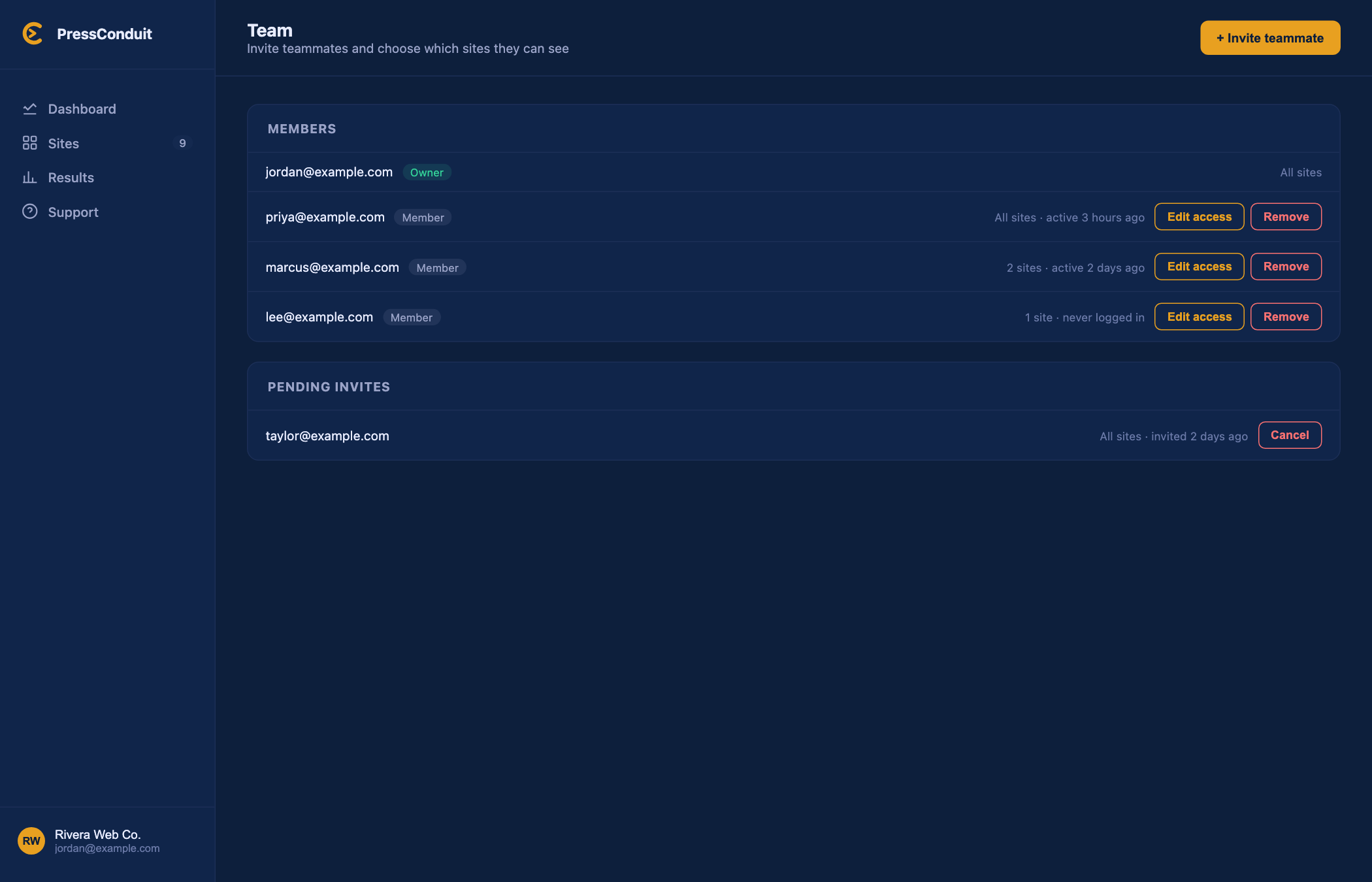
Invite someone
- Open Team and click + Invite teammate.
- Type their email.
- Choose their site access:
- All sites: they see every site on the account, including ones you connect later.
- Specific sites: tick the sites they should see. They won't see the rest.
- Click Send invite.
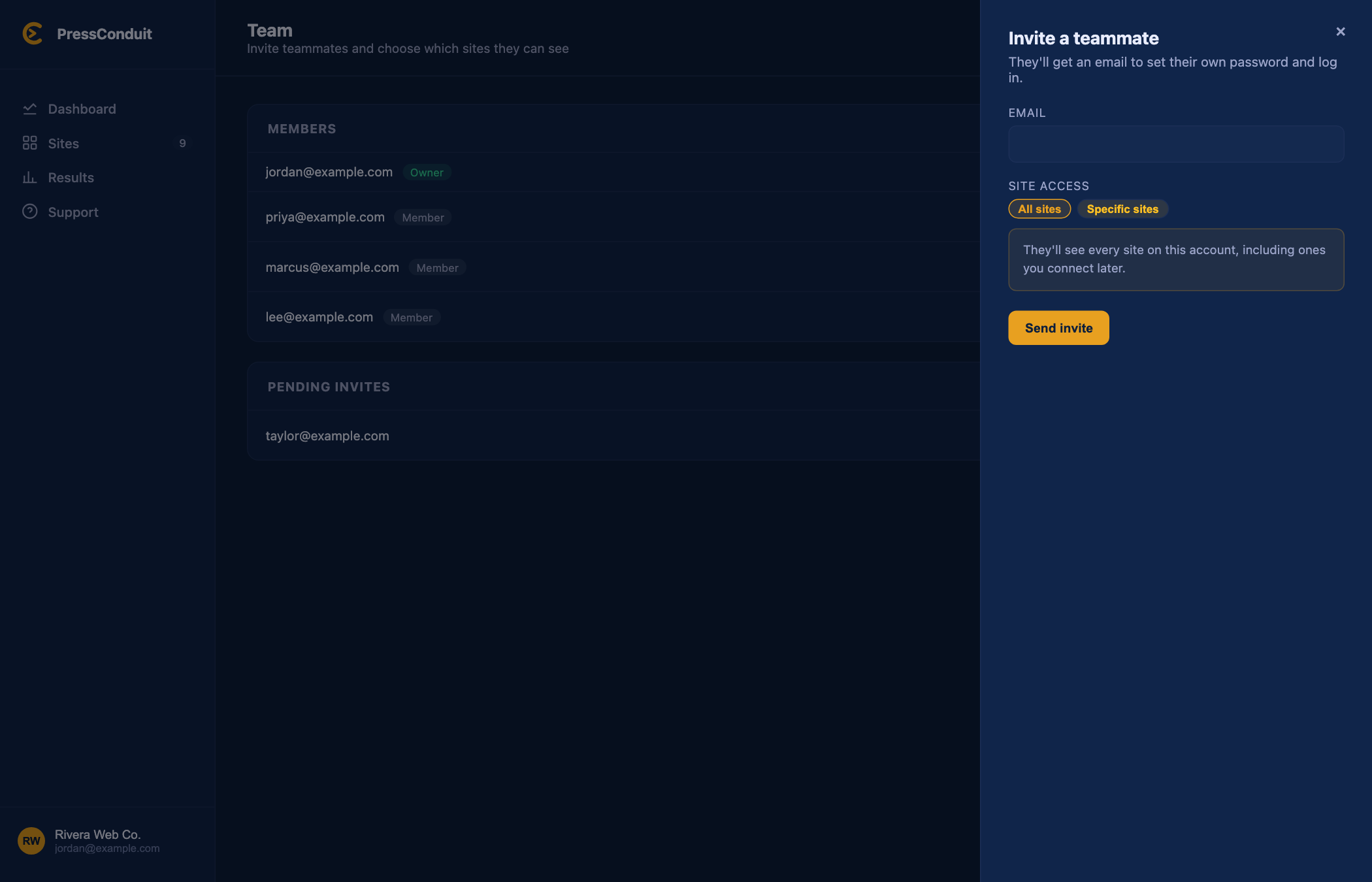
They get an email with a link to set their own password. The link works for 7 days. If it runs out, cancel the invite and send a new one.
Change what someone can see
Under Members, click Edit access next to their name, pick All sites or specific ones, and save. It takes effect right away.
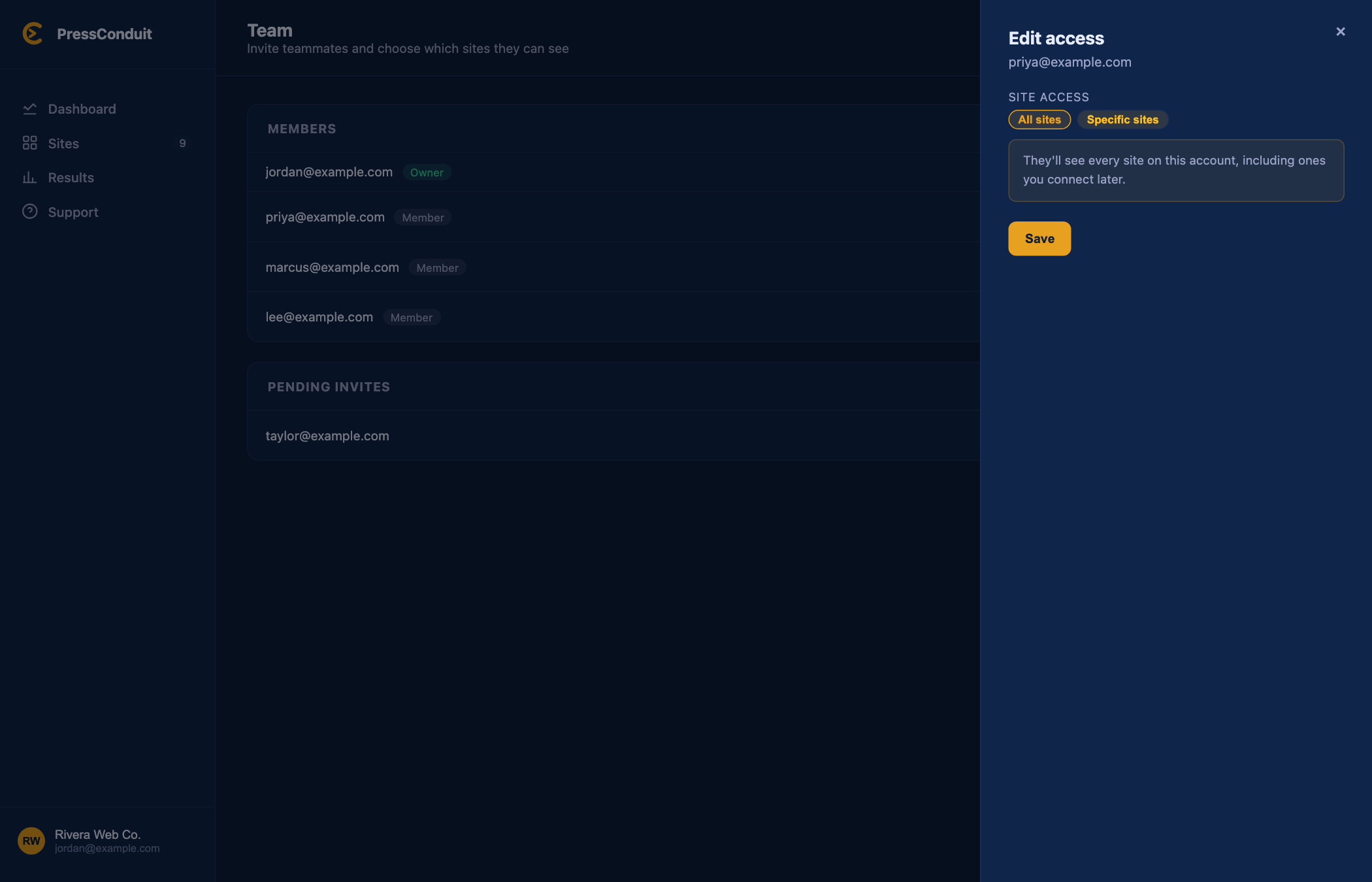
Each member also shows when they were last active, or "never logged in" if they haven't used their invite yet.
Cancel an invite
Pending invites are listed in their own box. Click Cancel to take one back.
Remove a teammate
Click Remove next to their name. They lose access right away. To bring them back, you'd send a new invite.
What teammates can do
They can use the Sites page and each site's details page for the sites you've given them. They don't see Team or Billing. In their own Settings, the red button says Leave team instead of Delete account.
Does it cost extra?
No. Teammates don't count as seats. Your plan is based on connected sites, not people. See Plans compared.