The Sites page
A tour of the page that shows every connected site and what each one needs.
The Sites page is home base. It lists every site connected to your account and tells you which ones need you.
The numbers at the top
Across the top you'll see a quick count:
- Need you now: sites with a problem that should be fixed today.
- Worth a look: nothing is broken, but something will cause trouble later.
- All good: nothing found.
- Updates waiting: the total number of plugin and theme updates across all your sites.
Keeping it fresh
You don't have to press anything. While the page is open, it reloads what it knows every minute. It also quietly re-checks the sites it hasn't looked at in a few minutes, a handful at a time, so it never floods your sites.
Want a fresh look right now? Click Check all sites at the top. A counter shows how far along it is.
Three ways to look at your sites
The three small buttons in the top-right corner of the list switch the layout. The page remembers your choice in this browser.
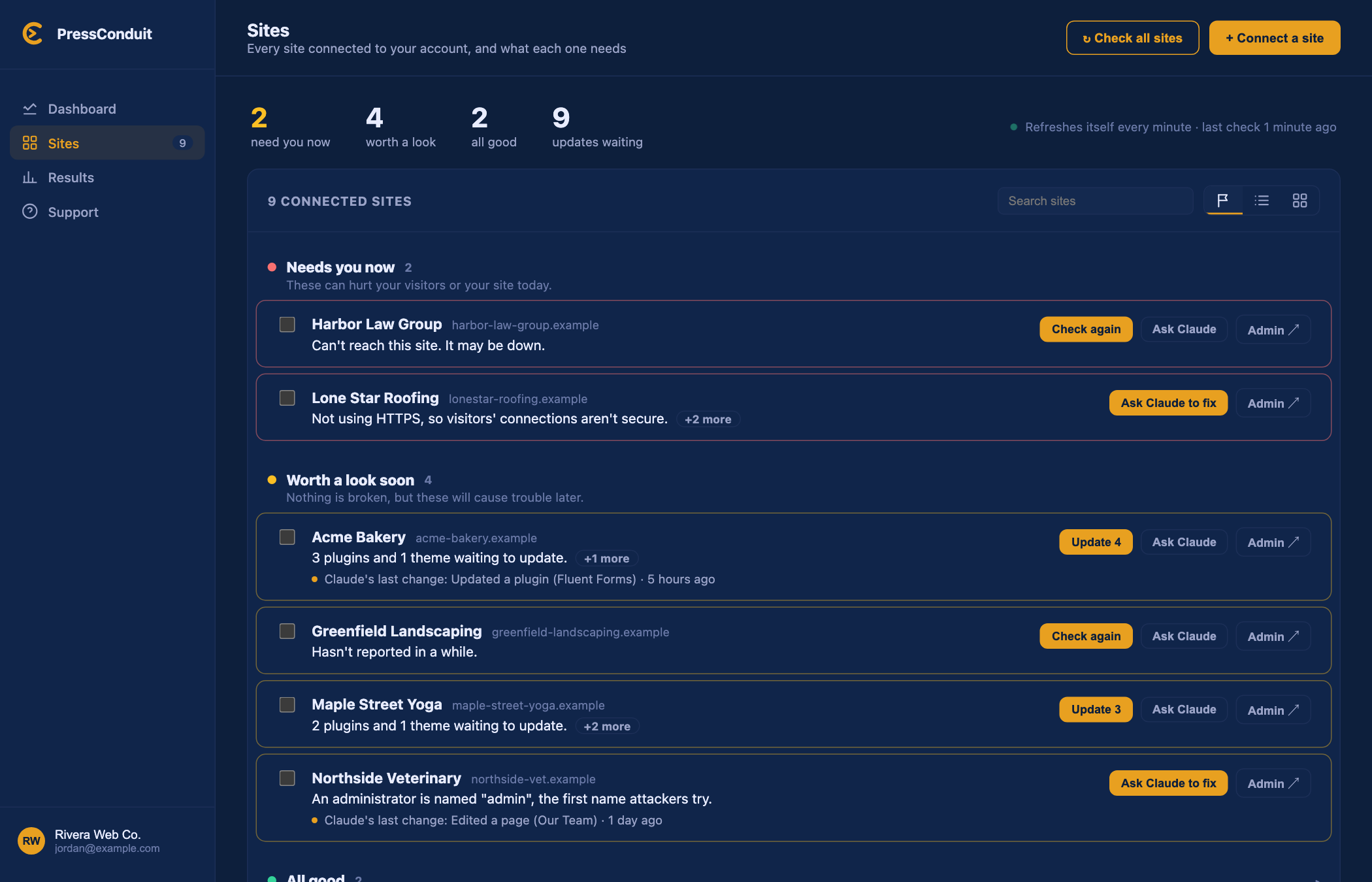
- Needs you: sites grouped by how urgent they are, worst first. Each one shows what's wrong and a button to fix it. Best for "what should I do first?"
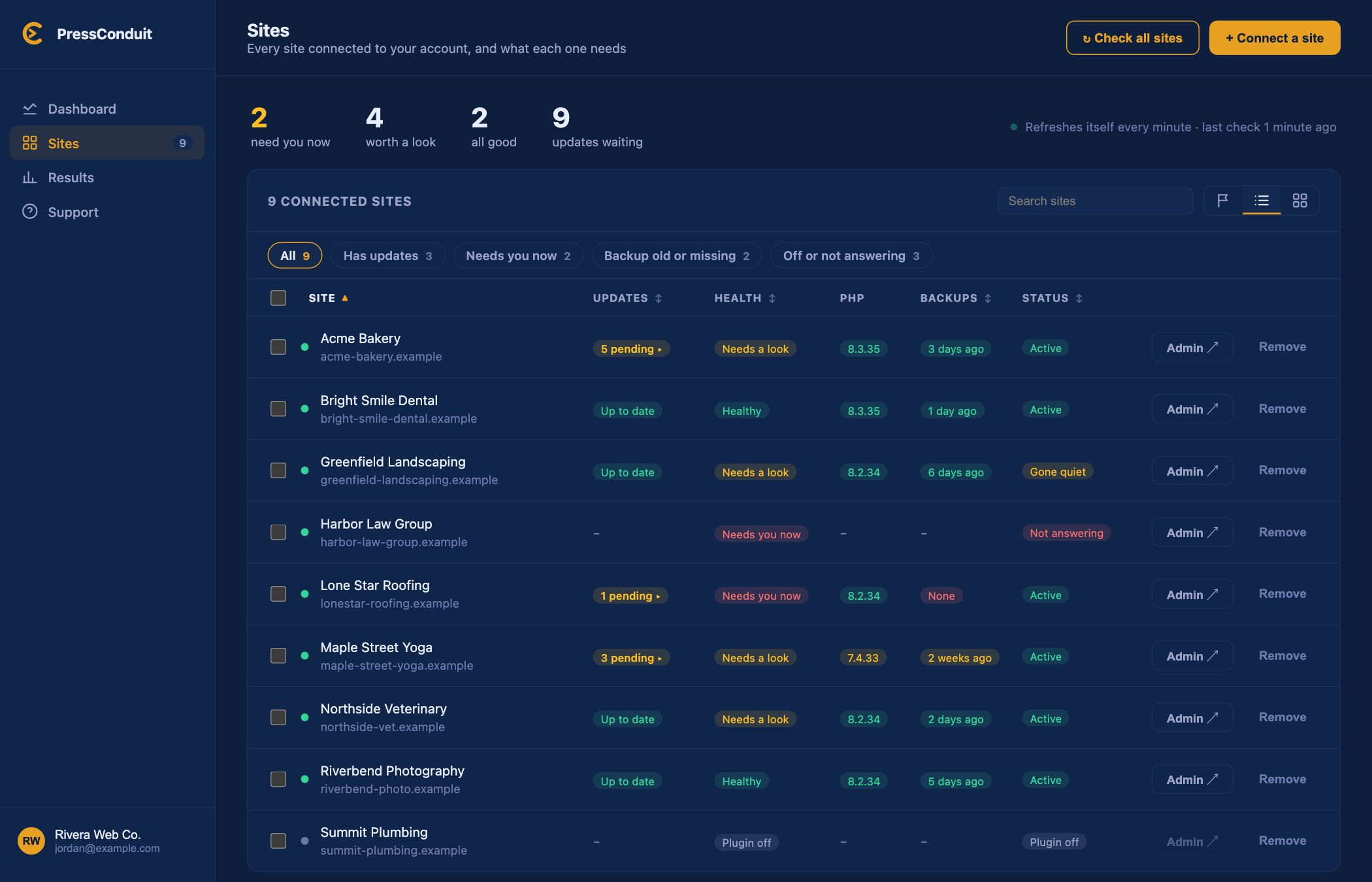
- List: one row per site, with columns for Updates, Health, PHP, Backups and Status. Click a column name to sort by it. This is the default.
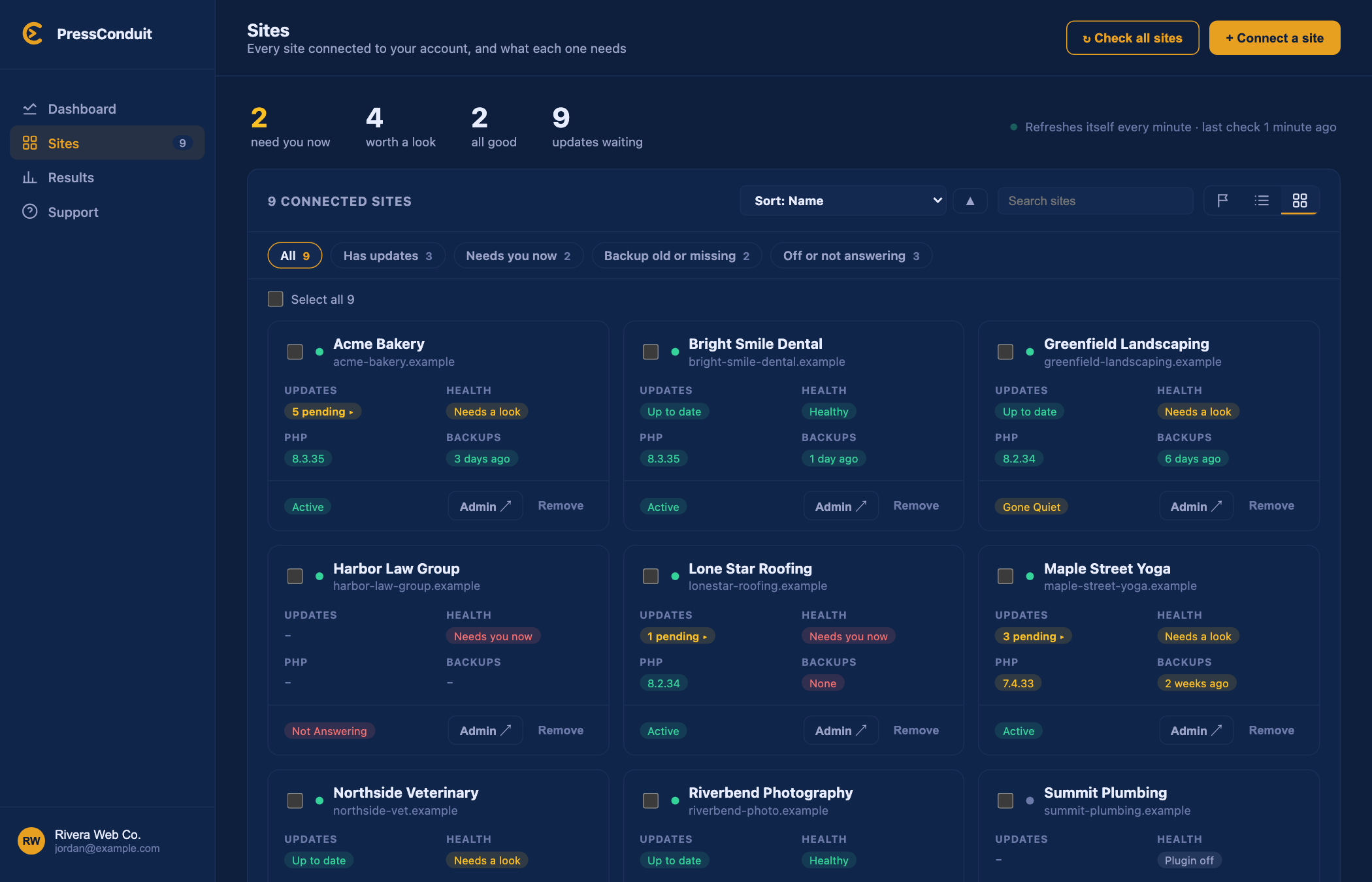
- Cards: one tile per site. Use the sort menu to order them.
This is the Needs you view:
And this is the Cards view, with one tile per site:
Click any site to open its details page.
Filters and search
In the list and cards views, a row of filter buttons sits above your sites. Each shows how many sites match:
- All
- Has updates
- Needs you now
- Backup old or missing
- Off or not answering

The filters appear once you have more than one site. A search box appears once you have more than six.
What the columns mean
- Updates: how many plugin and theme updates are waiting. Click it to see them.
- Health: a plain label. See What the health labels mean.
- PHP: the PHP version the site runs. It turns yellow if it's out of date.
- Backups: how long ago the last backup was. "None" means there isn't one yet.
- Status: whether the site is answering. See below.
What the status pills mean
- Active: connected and answering.
- Not answering: we couldn't reach the site. It may be down.
- Gone quiet: the site hasn't reported in for a while.
- Plugin off: the PressConduit plugin is turned off on that site.
Buttons on each site

- Admin: logs you in to that site's WP Admin in a new tab. See Log in to WP Admin with one click.
- Remove: disconnects the site from PressConduit. See Disconnect or remove a site.
To add a new site, click + Connect a site in the top-right. A side panel walks you through it.