Update your sites
How to update plugins and themes on one site, or on many sites at once.
You can update plugins and themes right from the dashboard. You don't have to log in to each site.
Before you start
Updates sometimes break a site. Take a backup first, especially for a site that matters. The Backups column on the Sites page tells you how fresh the last one is.
Update one site
- On the Sites page, find the site and click its pending button in the Updates column. A list opens showing each update and the version it will go to.
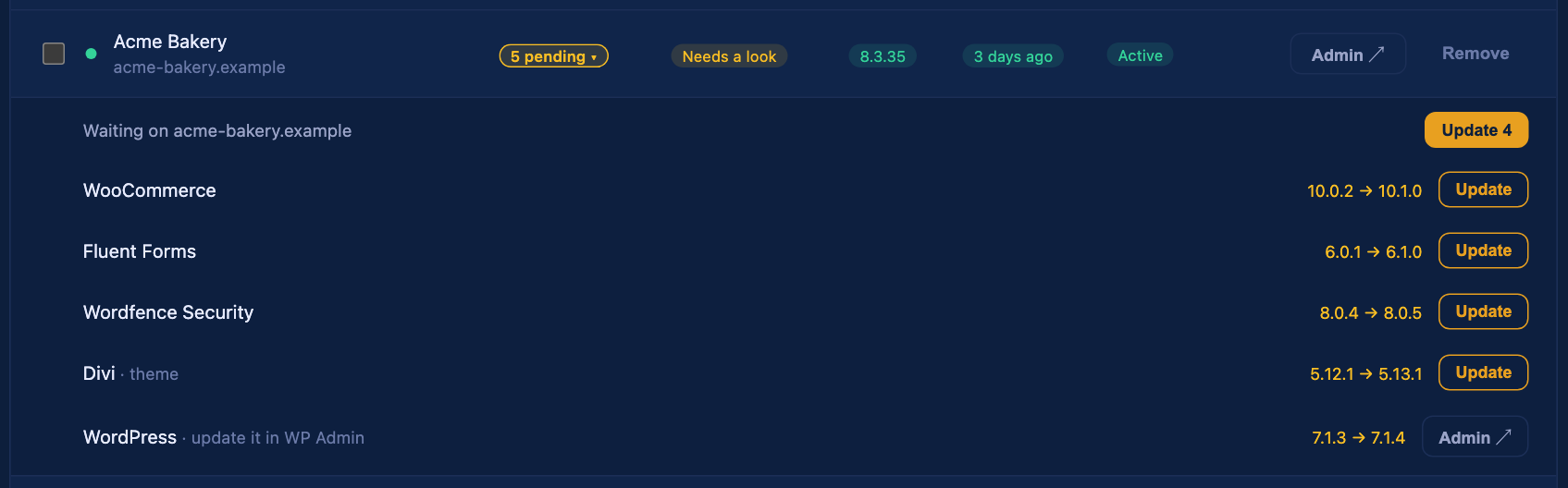
- Click Update next to a single item, or Update 5 at the top to do them all.
- Confirm. The site is updated one item at a time.
If one update fails, the dashboard stops and tells you which one and why. It doesn't keep going and pile more changes on top of a problem.
Update many sites at once
- Tick the checkbox next to each site you want. Use the box in the header to pick them all.
- A bar appears: Update 12 items on 4 sites. Click it.
- Confirm.
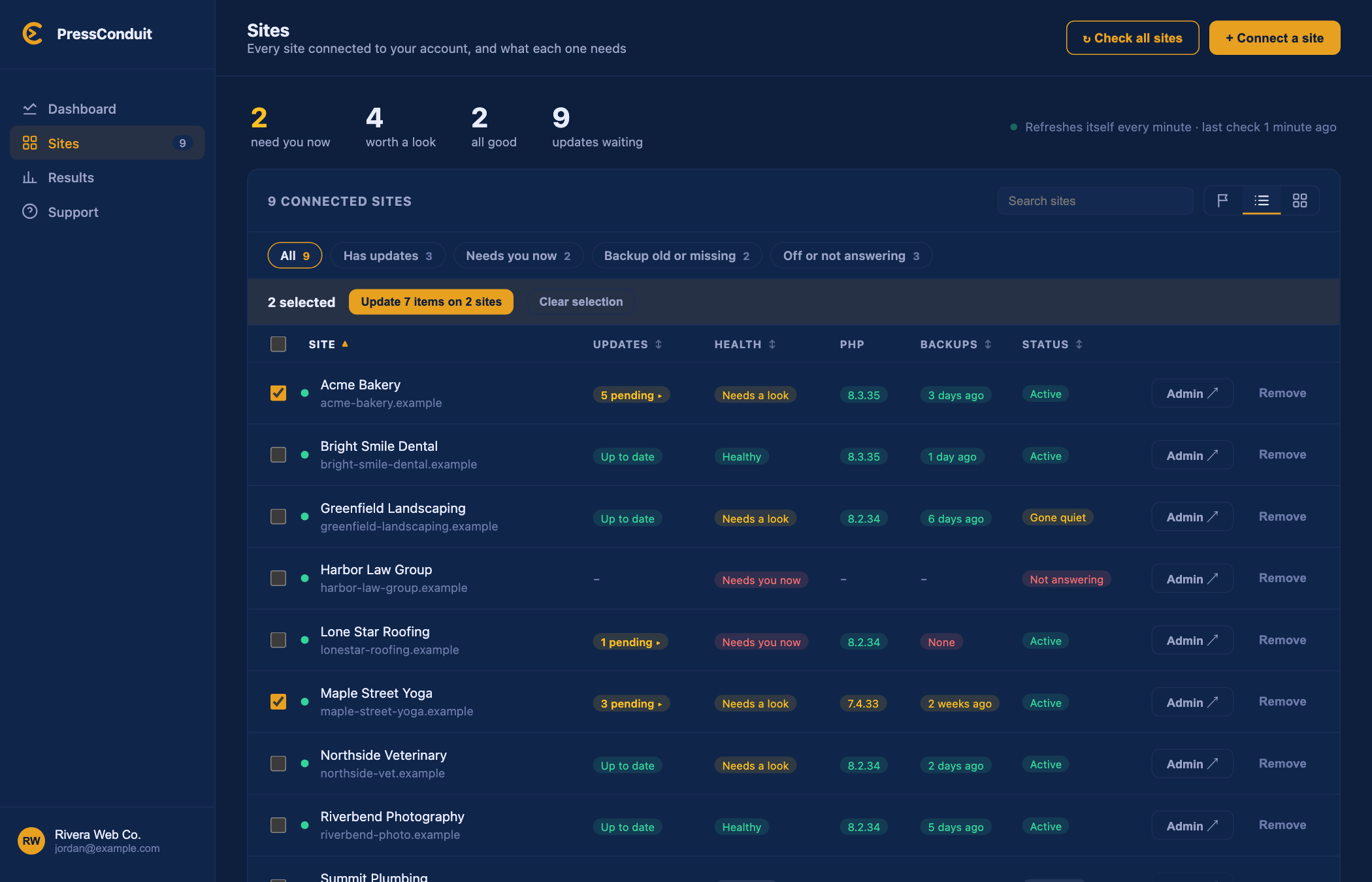
The dashboard works on two sites at a time. Each site still goes one item at a time and stops at its first failure. When it's done, you get a short report listing each site and what happened.
If you picked sites with nothing waiting, the bar says so and does nothing.
What's not included
WordPress itself. Core updates are bigger and riskier, so they're not done from the dashboard. The list shows the new version with an Admin button that logs you in to update it there.
Sites with the plugin off or not answering. We can't reach them, so there's nothing to update until they're back.
Tip: let Claude do it
You can also ask Claude to update things for you. See Ask Claude for help.